Tutorial 4 of 5
Turn a photo into a retro pixel image
Beginner 7 min
Make a limited-color image, compare dithering styles and keep a consistent palette across a batch.
Open Retro Lab
Choose Retro Lab from the Flipline drawing rail, or open the Moss print example on the landing page. Try alpine photo uses the bundled sample. Add retro images accepts up to eight PNG, JPEG or WebP files. Each file can be up to 4 MB and 2 MP, with an 8 MP total for the collection.
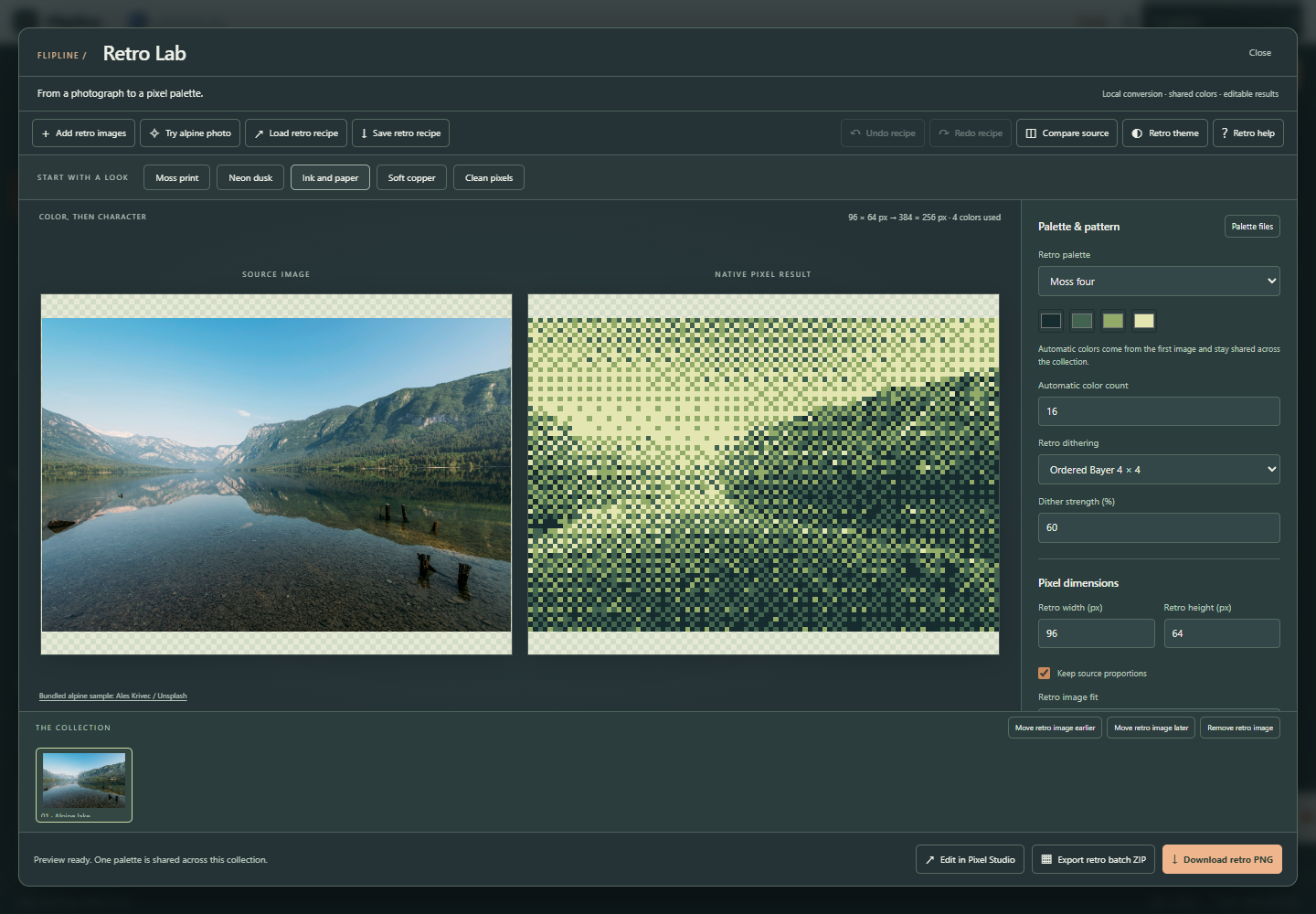
Choose the pixel dimensions
Retro width/height (px) set the native canvas, from 1 to 128 pixels per side. Fit · transparent padding keeps the whole image and adds transparent padding. Fill · centered crop fills the canvas by cropping the center. Stretch to dimensions fills both dimensions. Retro PNG scale repeats each native pixel from one to eight times without blur; it does not add detail.
The source and result previews help you compare the conversion. Start around 64 pixels wide for a small icon or 96 pixels for a scene. Presets combine an authored palette with a few adjustments, and you can change every setting afterward.
Shape the tones and colors
Brightness, contrast, gamma and saturation control the image before palette mapping. Red/Green/Blue shift adjust the channel balance. Retro alpha threshold makes pixels below the threshold fully transparent and all remaining pixels fully opaque.
Auto palette chooses frequent colors from the first image. A fixed palette makes the result easier to match to other artwork. Palette files accepts a HEX list, GIMP GPL or text JASC-PAL file with up to 32 colors. You can edit the list and download it in all three formats. Palette order and duplicate slots are preserved.
Compare the dithering styles
None chooses the nearest palette color for each pixel. Ordered Bayer uses a repeating pattern to suggest intermediate tones. Floyd–Steinberg distributes color error across neighboring pixels. Dither strength controls the effect; zero behaves like nearest-color mapping. Transparent pixels stop error diffusion.
Dithering can help broad gradients, while a small icon may read more clearly without it. Use Undo and Redo to compare adjustments. For hand cleanup, choose Edit in Pixel Studio. This opens the current result at its native dimensions as an editable indexed sprite. Save that sprite before adding more frames or layers.
Keep a batch consistent
Import several images and select their thumbnails to compare results. Every image uses the same dimensions, adjustments and resolved palette. Auto palette comes from the first image in the collection, so reorder your source files before importing if a different image should establish the colors.
Download retro PNG exports the selected result. Export retro batch ZIP downloads a ZIP containing numbered PNG files, editable Pixel Studio projects, a shared recipe and a manifest. Numbering keeps files distinct when different sources have the same filename.
Save the look
Save retro recipe downloads a small .flipline-retro.json file with settings and the resolved palette. It contains no source images. Load retro recipe or Flipline's main Open button restores the settings; import your source images again to apply them. Settings are also remembered locally, but downloaded recipes are the durable backup.
Retro Lab and Pixel Studio process images in your browser. The separate Pixel Art Image Converter and Retro Pixel Art Batch Processor upload inputs to the server and return downloadable results through the website, API or MCP. Pixel Palette Format Converter handles palette text. Those companion tools use the same conversion engine.